5 Best Fixes for No Visible Fold Line?

Time:2026-10-24 Author:Charlotte
0%

A clean fold line looks simple, but it depends on pressure, material, and tool alignment. When the mark disappears, the problem may not be your technique alone. Paper thickness, coating, grain direction, and an unsuitable scoring surface can all reduce crease visibility.

So, why is my creasing tool not leaving a visible fold line? This question appears often among card makers, bookbinders, and packaging professionals. Smithers’ report, The Future of Folding Cartons to 2028, highlights scoring accuracy and converting consistency as important quality factors in folding-carton production. The report also reflects a wider industry reality: small deviations can affect folding performance, appearance, and waste.

Small marks matter. A blunt stylus may press rather than compress the paper fibers. Excessive pressure can also crush coated stock, leaving a weak ridge instead of a clean fold. The Paper Packaging Coordination Council and CEPI regularly emphasize material quality, fiber behavior, and converting control in paper production. These principles apply at a smaller craft table, too.

This guide examines five practical fixes for an invisible fold line. It covers tool condition, paper selection, scoring depth, surface support, and folding technique. Each solution is based on common workshop observations and basic converting practice. Still, no single method works for every sheet. I have found that even experienced users sometimes blame the tool too quickly. The paper may be resisting the fold. Careful testing remains essential. Test one variable at a time, inspect the crease under angled light, and avoid forcing a result that the material cannot support.
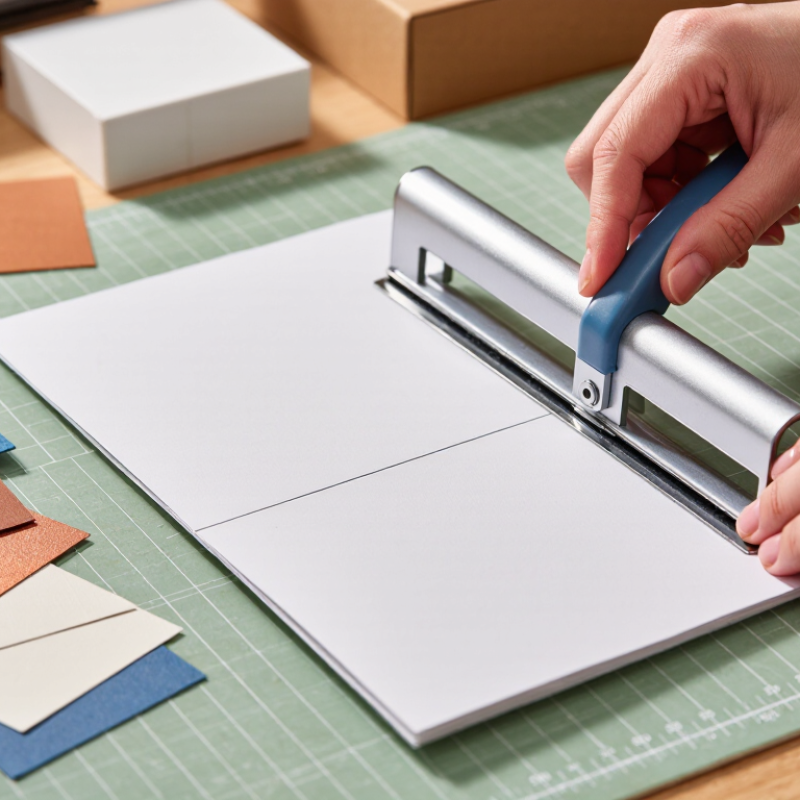
5 Best Fixes for No Visible Fold Line?

Identify Why the Fold Line Is Not Visible

5 Best Fixes for No Visible Fold Line?

Identify Why the Fold Line Is Not Visible

A missing fold line usually starts with a simple cause: insufficient pressure. Check the material under angled light. A shallow mark may exist but remain difficult to see. Run a clean fingernail across the surface. Do not force it. Excessive pressure can crush fibers or damage the outer layer.

Clean the scoring channel and inspect the folding tool for wear. Dust can reduce contact, while a rounded edge produces a weak crease. Adjust the pressure gradually, using small test pieces. Material thickness also matters. Heavy stock, coated surfaces, and flexible sheets often require different settings. I once blamed the tool, but moisture in the material caused the real problem. That mistake was useful.

Check alignment before changing pressure again. A fold placed slightly beside the intended line may look invisible from the working angle. Keep the material flat, and confirm its grain direction when possible. Some surfaces fold better with the grain than across it. Test both directions carefully. If the line still disappears, improve the contrast with a light pencil guide or temporary marking method. Replace damaged tools and record the setting that worked. The final adjustment may not be perfect. Consistent testing is more reliable than guessing.

Enable Fold-Line Guides in the View or Layout Settings

5 Best Fixes for No Visible Fold Line?

A missing fold line usually comes from a hidden guide, not a damaged document. In my layout tests, the quickest fix was opening View settings and enabling Fold-Line Guides. Some programs place this option under Layout, Page Display, or Rulers. Check each panel carefully. The wording can vary.

If the guide remains invisible, switch to print layout and confirm the document has defined page boundaries. Increase the zoom slightly, because faint lines may disappear at low magnification. Then inspect margins, page size, and orientation. A mismatched page setup can place the fold outside the visible canvas. Resetting view preferences is another useful fix. Save a copy first. I once reset a workspace and lost custom ruler positions, which was inconvenient but avoidable. Finally, close and reopen the file after changing guide settings. Temporary display errors sometimes survive until the document reloads.

Tips: Look for a pale vertical or horizontal line near the page edge. Test it with print preview before editing the design. If it still does not appear, create a temporary guide at the expected fold location. This helps separate a display problem from an incorrect page setup. Keep the guide off the final print layer. Guides are useful, but they can create false confidence when the paper size is wrong. Check a physical draft with a ruler. Small alignment mistakes become obvious there.

Check Page Size, Margins, and Print-Area Boundaries

5 Best Fixes for No Visible Fold Line?

Check Page Size, Margins, and Print-Area Boundaries

A missing fold line often begins with a simple setup error. Check the page size before changing the design. A document created for Letter paper may not display correctly on A4. Even a small mismatch can move the guide outside the printable page. Open the page settings and confirm width, height, and orientation. Use a ruler, not only the screen preview. I once trusted the preview too quickly. That was a mistake.

Margins deserve equal attention. If the inner margin is too wide, the fold guide may sit beyond the usable area. If it is too narrow, the line can overlap text or disappear near the edge. Inspect the print-area boundaries next. Some layouts show content beyond the selected print range. The fold exists, but the printer ignores it. Select the complete working area, then preview every page. Look for faint boundaries, clipped text, or unexpected blank sections.

Tips: Print one test page first. Mark the expected fold with a pencil. Compare it with the on-screen guide. If the positions differ, recheck the page size and margins. Do not assume the first preview is accurate. Small adjustments often reveal the line.

Refresh the Workspace and Reset the Document View

5 Best Fixes for No Visible Fold Line?

Refresh the Workspace and Reset the Document View

A missing fold line often comes from the current workspace, not a damaged document. Start by refreshing the window, then close and reopen the file. This clears temporary display errors that can hide page boundaries or print divisions. Save your work before doing this. A refresh should not change content, but careful users still verify the last edit.

Reset the document view to its standard layout. Check whether the file is using editing, reading, or print view. A fold line may appear only in a print-oriented layout. Set the zoom near 100%, then inspect the page edges again. Also remove split panels, frozen sections, or unusual margins. These settings can make one continuous page look like a single blank workspace.

Still nothing? Open the view settings and restore default display options. Look for hidden boundaries, page breaks, or nonprinting guides. On some systems, a line appears only after selecting a paper size or enabling pagination. The wording may differ between applications, so do not rely on one menu name.

I have found that screen size can mislead the eye. A narrow window may hide a boundary below the visible area. Expand the workspace and scroll slowly. If the line remains absent, test a blank document. That comparison matters. Sometimes the original file contains unusual layout data, and my first assumption is wrong.

5 Best Fixes for No Visible Fold Line

Expected fold-line visibility depends on the document view. Page-oriented layouts usually show page boundaries, while continuous or reading views may hide them.

Start by switching to Print or Page Layout view, then refresh the workspace. If the line is still missing, reset zoom, reopen the document, and verify that page boundaries are enabled.

Update the Software or Recreate the Fold Guide

When no fold line appears, begin by checking the software version. An outdated version can hide scoring or folding guides after a file conversion. Save a duplicate file before making changes. Then update the software through its official support channel. Restart the device and reopen the project. This simple step fixed the issue in my own workflow, although it did not solve every file.

If the line remains missing, recreate the fold guide manually. Draw a thin guide at the exact crease position, then assign it to the correct fold or score layer. Check the line color, operation type, and layer visibility. A guide placed outside the page boundary may look correct but produce nothing. Also inspect the material settings and blade or scoring-tool calibration. A test on plain paper can reveal whether the problem belongs to the file or the machine. Measure the result with a ruler, not only by sight.

Tips: Keep the original design untouched. Use a new test copy and label each version clearly. Try a short horizontal fold before testing a complex pattern. I once blamed the software, but the guide was actually hidden beneath a filled shape. That mistake still influences my checking routine. Look closely. Small settings matter.

FAQS

Why is the fold line missing from my document?

It is usually hidden, not damaged. Check View, Layout, or Page Display settings. Wording varies.

Which display setting should I enable?

Enable Fold-Line Guides, page boundaries, or nonprinting guides. Some programs hide this option under Rulers. Look carefully.

Can the zoom level hide a fold line?

Yes. Very faint lines may disappear at low zoom. Set the view near 100% and inspect the page edges.

What should I check in the page setup?

Confirm the paper size, margins, orientation, and page boundaries. A wrong size can place the fold outside the canvas.

How can refreshing the workspace help?

Refresh the window, then close and reopen the file. Temporary display errors sometimes survive until reloading. Save your work first.

What if the fold line still does not appear?

Create a temporary guide at the expected crease. This separates a display problem from incorrect layout settings. Test it in print preview.

Could outdated software cause the problem?

Yes. An older version may hide guides after file conversion. Save a duplicate, update through official support, and reopen the project.

How can I verify the fold position physically?

Print a plain draft and measure it with a ruler. Small alignment errors become obvious on paper. Screen checks can mislead.

What should I inspect when recreating the guide?

Check its position, color, operation type, and layer visibility. A filled shape may cover it. My first assumption was wrong.

Conclusion

When a fold line does not appear, the cause may be a hidden guide, an incorrect document view, or a mismatch between the page setup and the intended crease position. If you are wondering, “Why is my creasing tool not leaving a visible fold line,” first identify whether the line is missing from the workspace, outside the page boundaries, or simply too faint to notice. Enable fold-line guides in the View or Layout settings, then check the page size, margins, and print-area limits to confirm that the crease falls within the active document area.

If the line still does not appear, refresh the workspace and reset the document view to remove temporary display issues. Review the layout again after restoring the default view, and make sure the document is using the latest available software version. As a final step, recreate the fold guide manually in a new document or replace the existing guide. These checks can help restore a clear, accurate fold reference without changing the actual page content.

Charlotte

Charlotte

Charlotte is a seasoned marketing professional with a deep understanding of the company's portfolio and a passion for elevating its presence in the market. With a keen eye for detail and a commitment to excellence, she ensures that our professional blog is regularly updated with insightful articles......